

Technical Help and Guide
How to Access BAM Global Events:
For paid ticket events, like the BAM Global Summit, all registered attendees will receive a link to access the event online a few days before the event.
For free BAM Connect events, you will receive the link in a BAM Global News email just before the event. Subscribe to get access.
Once you have also registered on RingCentral using the event link you were sent, please search your inbox for either the confirmation email or a reminder email and click the blue ‘Enter Event’ button in that email to re-enter the event.
Having problems?
If you can’t access RingCentral or have technical issues:
Please read our RingCentral Troubleshooting Guide below.
If you can’t find the Event Access Link email:
Please email tech@bamglobal.org and cc info@bamglobal.org to make sure our team will see your message in time.

Introduction to RingCentral
Our event platform for the BAM Global Events
RingCentral is the platform we’ll use to broadcast each live event. This platform was previously called Hopin so if you have previously created a Hopin account you should be able to log in using the same personal log in details.
If Zoom is like going to a virtual meeting, then RingCentral is like going to a virtual conference! We will send you a RingCentral link ahead of each online event to access it.
When you click on the event access link, you will be prompted to either create a RingCentral account or sign in. Note: Please click the link we send you for the event first and then sign up or sign in (with your username and password/OTP) where you are prompted. If you first log in via the general RingCentral webpage, you will not see our upcoming event listed as it is a hidden event, as it requires the direct link to access.
You should receive a confirmation email with the subject line, ‘Thank you for registering…’ – you can use the blue button in this email to get back into the event at any time.
Once event goes live and you go back in, you will enter the Reception area and see icons for different areas of the event: the Stage (like the plenary hall), the Sessions (like the breakout room zone), the Expo (like the exhibition hall and info tables), and Networking (like the coffee break networking area).
If you are new to RingCentral, we recommend clicking the access link and creating your account ahead of the event, so that you are not rushed on the day.
Having problems?
If you can’t access RingCentral or have technical issues please read our RingCentral Troubleshooting Guide below.
If you can’t find the Event Access Link email please email tech@bamglobal.org and cc info@bamglobal.org to make sure our team will see your message in time.
Joining an Event in RingCentral: Step-by-Step
IMPORTANT:
Can’t access RingCentral or having technical issues? Please read our Step by Step and Troubleshooting Guides below.
For urgent technical help at the time of an online event, please email tech@bamglobal.org and cc registrar@bamglobal.org
Please do not give the event access link and event password to others (unless it is your spouse). Instead ask others to Register for the Events here.
Can’t find the Event Access Link email? Please email registrar@bamglobal.org and cc info@bamglobal.org to make sure our team will see your message in time.
1. Click the access link and enter the event password
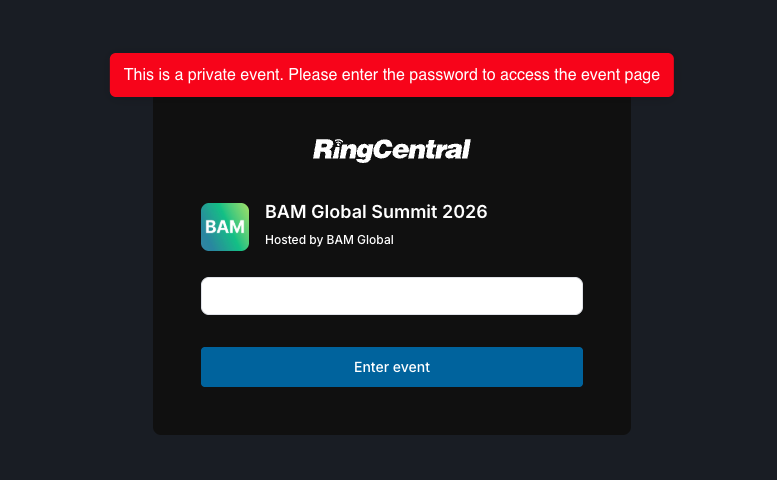
The access link and password will be sent in an email directly to all registered Event Attendees 2-3 days before the start of each online event.
We recommend opening the link on a computer as it’s an easier navigation experience around the online event. However, you may also choose to download the RingCentral App and access the event via the app (this is easier if you have already logged in on your computer, simply log into your account on the app and the event should show up) or open the event link in a mobile browser.
If you have not received the link, please contact registrar@bamglobal.org and cc info@bamglobal.org to ensure one of your team will see your message quickly and give you access as soon as possible.
2. Click the blue button to join event

Click the blue ‘Sign Into RingCentral’ button to be taken directly to the RingCentral user account sign in or sign up page.
3. Sign into – or create – your RingCentral Account

If it is your first time using RingCentral, enter your details and click the blue Register button to create your account.
If you have used RingCentral (or Hopin) previously, simply click the blue Sign in link to open an account sign in page. You will be asked for your email and can opt to get a verification link sent to your email address. Otherwise, if asked for your password, this is your personal account password (not the event password that you already entered).
Please note the name that you use for your RingCentral account is displayed to other attendees – it is like your conference badge – you may choose just to use your last name initial if you are concerned about security. You can also update your RingCentral profile later.
4. Once you have registered or signed in, update your profile on the event landing page
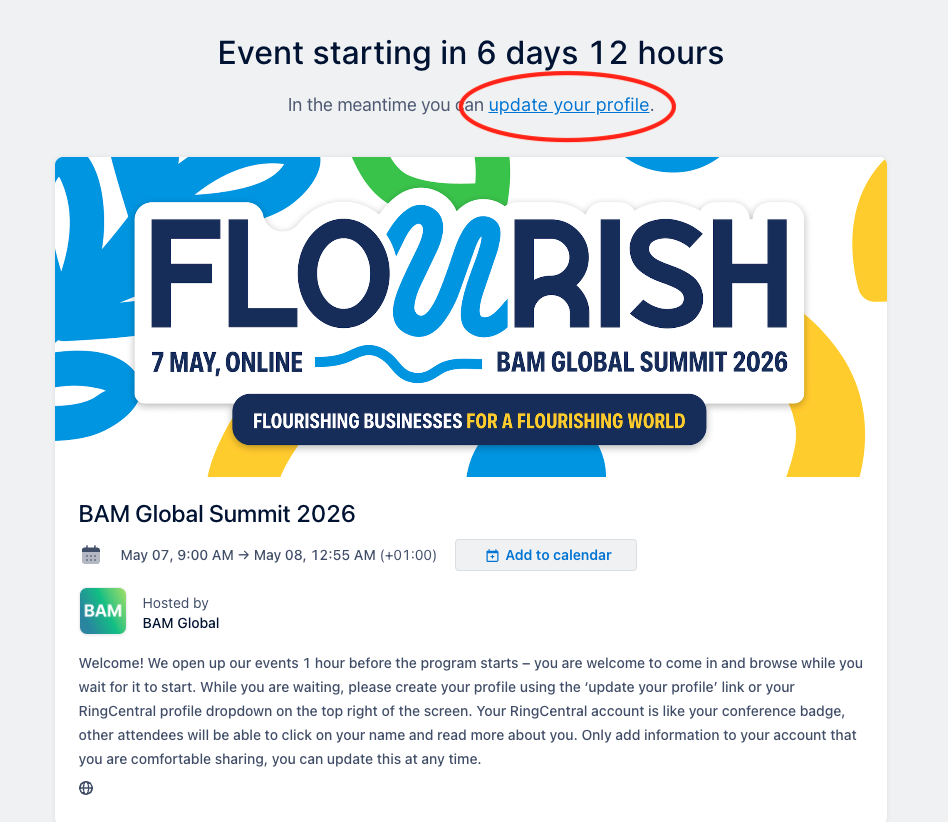
If the event is not yet open, you will see the hours and days until the event starts, you may click the ‘update your profile’ link to add more info to your profile.
To get back into the event, click the blue “Enter event” button in the confirmation email you receive to be taken straight back to the event landing page.
Note: The access link and event password will change for each online event. The access link will be emailed to attendees about 2-3 days before each event.
Can’t find the Event Access Link email? Please email registrar@bamglobal.org and cc info@bamglobal.org make sure our team will see your message in time.
Having problems with RingCentral? Read our Troubleshooting Guide below.
RingCentral Troubleshooting Guide
If you are having trouble accessing RingCentral, or joining a Session with your Audio/Video, please read this RingCentral help article and go through these Troubleshooting Tips:
1. Make sure you are using the correct password to access RingCentral
If you have previously used RingCentral (or Hopin), make sure you are using the correct personal email and the password that you created for your account. (Use your personal account password or one-time code, not the Event password if there is one and you have already entered this).
Forgot your password? If you have created a RingCentral or Hopin account before and have forgotten your password, click the ‘forgot password’ link or opt to use the single-use code sent to your email address. You may have also signed up using your Google or Facebook or similar account, so try those login credentials if you still can’t log in. Finally, if all else fails, please create a new account using a different email address that you have access to.
2. Use your unique link to get back in
If you are having any problems getting back into the online event after you have logged into it, look for an email from RingCentral with the subject line, “Access BAM Global Summit 20XX – Attendee Pass [Pre-Registered]“. Click the blue ‘Enter event’ button in that email and you should be straight in!
3. Not seeing current event? Only seeing past events?
This has happened because you have logged into the general RingCentral Events webpage instead of the landing page for our specific event. If you simply log into your RingCentral account from the main RingCentral public page, you will only see your past events (because BAM Global events are private events and are hidden from the public unless you have the event link). Please go back to one of our email communications and click the specific event link we sent you, THEN log in to your account.
4. Click out of the Session and back in again
Once into RingCentral, if you are trying to join an networking roundtable or breakout (Session tab) and are not seeing the blue button to join Audio/Video in a Session or are getting a spinning wheel when you click it, first of all click out of the Session tab, refresh your browser and then click back into the Session tab and the roundtable/breakout. Please note, for some panels and breakouts, only the panellists or presenters will have permission to share Audio/Video.
5. Restart your browser or try opening the RingCentral link in an Incognito or Private tab
Sometimes, third-party extensions can affect the experience by blocking some of the RingCentral interface elements. Restarting your browser or using a private/incognito tab to open the event can prevent problems.
6. Try a different browser and/or device – and make sure browser is up to date
Read the RingCentral browser guide here. RingCentral recommends attending with your computer and using Chrome, Firefox, or Microsoft Edge (chromium version on Windows 10 and above only) for the best user experience. However, it is worth trying a different browser if you have one installed, some people have found Safari works better on Macs. If there is constant buffering, make sure your browser is up to date.
If you must use mobile, we recommend downloading the RingCentral App for your device. Click here for a guide to using the RingCentral mobile app.
You may also open the event in a browser on mobile devices, if so the recommended browsers are:
Android – Chrome
Apple iPhones / iPads – Safari
7. Make sure RingCentral has permission to access your camera and microphone in your browser settings
In Chrome or Firefox, click the lock or settings symbol to the left of the website address in the browser address bar and click on ‘view site information’ or site settings/permissions and allow your browser access to the Camera and Microphone.
8. Restart your computer
RingCentral have advised us that if the above tips do not help, then re-starting your computer will often clear issues and help your connection.
If none of the above tips help, or for urgent help with access at the start of the online event, please email tech@bamglobal.org.
HOPIN TROUBLESHOOTING GUIDE
If you are having trouble accessing Hopin, or joining a Session with your Audio/Video, please read this help article and go through these Troubleshooting Tips:
1. Make sure you are using the correct password to access Hopin
The first time you click on an event link you will be asked for the Event Password (supplied in the webinar access email we send all attendees). You will only be asked for the Event Password once – after that you log back in to Hopin using your own personal email and the password that you created for your Hopin account.
2. Click out of the Session and back in again
If you are trying to join an open networking roundtable (Session tab) and are not seeing the blue button to join Audio/Video in a Session or are getting a spinning wheel when you click it, first of all click out of the Session tab, refresh your browser and then click back into the Session tab and Roundtable/Breakout. Please note, for some panels and breakouts, only the panellists or presenters will have permission to share Audio/Video.
3. Try opening the Hopin link in an Incognito or Private tab
Sometimes, third-party extensions can affect the experience by blocking some of the Hopin interface elements and using a private/incognito tab to open the event can prevent problems.
4. Try a different browser and/or device – and make sure browser is up to date
Hopin recommends attending with your computer and using Chrome or Firefox for the best user experience. However, it is worth trying a different browser if you have one installed, some people have found Safari works better. If there is constant buffering, make sure your browser is up to date.
If you must use mobile, please use Chrome or Firefox for Android and Safari for iPhones and iPads.
5. Make sure Hopin has permission to access your camera and microphone in your browser settings
In Chrome or Firefox, click the lock symbol to the left of the website address in the browser address bar and click on site settings or permissions and allow your browser access to the Camera and Microphone.
6. Restart your computer
Hopin have advised us that if the above tips do not help, then re-starting your computer will often clear issues and help your Hopin connection.
If none of the above tips help, or for urgent help with access at the start of the online event, please email tech@bamglobal.org.
USING HOPIN DURING AN EVENT
If using Zoom is like going to a meeting, using Hopin is like going to a conference – only virtually. It is designed to give you a similar experience to being at a real in-person event, along with versatile opportunities to network with other attendees.
When you first login to Hopin and gain access the the event, you will enter the Reception area which is like the foyer of a convention hall. Instead of seeing signposts in the corridors of the venue, you will see icons for different areas of the event to the left hand side:
The Stage (like the plenary hall), the Sessions (like the breakout room zone), the Expo (like the exhibition hall and info tables), and Networking (like the coffee break area, but bring your own coffee!).
To the right hand side there is also Event Chat, which you can use to post messages to all, Polls, which we will occasionally use to get your feedback, and People, which you can use to see a list of other attendees and make contact.
Click on a hot spot to find out more about each Hopin feature:
1
2
3
4
5
6
7

1
The Reception is where you will land when you first enter the event. The Reception landing page includes: a description of the event and any instructions we want to give you, our event sponsors, and toward the bottom, an overview of the program schedule.
2
Click on the Stage icon when it is time for the Webinar to start. The Stage is like the plenary hall where the main presentation will be streamed. The emcees, speakers and production team will be streaming live from a Zoom call into the Hopin Stage area, which is why you will see a Zoom icon on the bottom right of the screen.
3
Sessions are like breakouts or roundtables at the event. We will indicate in the schedule the bottom of the Reception page and verbally from the Stage when it is time for everyone to go to the Sessions zone. Sessions will be limited to between 8-15 participants (those who can join with video and audio), but an unlimited number of people can also watch, listen and participate in the Session Chat (unless it is a closed session). If you see a blue join button to the top right hand side of the Session window, it means there is space to participate. If you do not see a join button, then either the maximum participant number has already been reached, or your browser is not compatible with Hopin. If you try to join, but get an error or spinning wheel, then your browser is likely incompatible, see here and here. If you wish to listen in and not participate, or swap out your spot with someone watching, press the red leave button, you will still be able to listen in until you leave the Session area.
4
The Networking zone is like standing in line during the coffee break and starting up a conversation randomly with one other person. Click the Networking icon to start and click the blue button to be matched one-on-one withe next person who enters the Networking zone
5
The Expo zone is where we will have the digital booths for the BAM Digital Expo and also any information tables for the event. Click the Expo icon to take a look around the Expo – click on each booth to find out more.
6
When there is something happening live in the event, a banner will show up here at the top of the Reception page to tell you to go to the Stage or to Sessions.
7
On the right hand side you can toggle between Chat, Polls and People. In Chat you can switch between Event Chat and a special Chat tab for which ever area you are in: Stage Chat (related to the main stage), Session Chat (related to that breakout), Booth Chat (inside each exhibitor booth). There is also a Direct Message tab for contacting other attendees directly, which you do via the People tab, top right.
BGLOBAL GUIDE
BGLOBAL COMMUNITY
A COLLABORATIVE SPACE FOR THE BAM MOVEMENT
The BAM Global Congress program will be fully integrated with activities and interaction in BGlobal throughout the series and main event. All Congress attendees will be given the opportunity to join the BGlobal platform.
All webinar recordings will be available in the BGlobal Congress Zone. If you are registered for the Congress and have not yet activated your BGlobal account, either click the Log in button in your invitation email, if you received one, or if not Request an Invitation here.
